
The Invoice List is your central hub for managing all invoices in Ocerra. It provides a clear view of invoice details, allows you to filter and sort invoices, and gives quick access to common actions such as uploading, approving, or exporting invoices.
Sections on the Invoice List Page:
1. Invoice Upload
Easily upload new invoices directly from your computer. This allows you to manually import files into Ocerra quickly without navigating away from the page.
Using direct upload to import files to Ocerra
2. Invoice Filters
Filter invoices by supplier, invoice number status or other criteria to find the exact invoices you need. Filters help you manage large invoice volumes efficiently.
How to use filters on the invoice page
3. Quick Action Buttons
Enabling you to perform key actions and filters with just a single click. An information icon has also been added for quick reference, providing details on each button's purpose for a specific period of time (3 months).
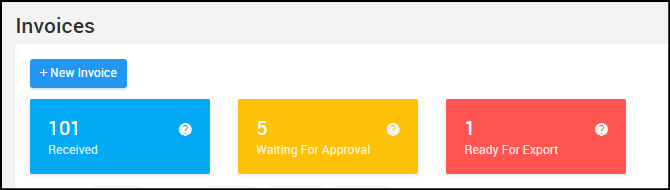
(!) Quick access buttons exception
You can use the button for all default statuses for export, such as Submitted and Approved. Please note that if you have custom states like 'GM Final Approved,' the enhancement may not be applicable in those specific cases.
4. Invoice Details Table
View key information such as invoice number, supplier, date, due date, amount, status, submission and received dates, comments, and notes etc. The table also allows sorting and adjusting how many columns are visible in the invoices page.
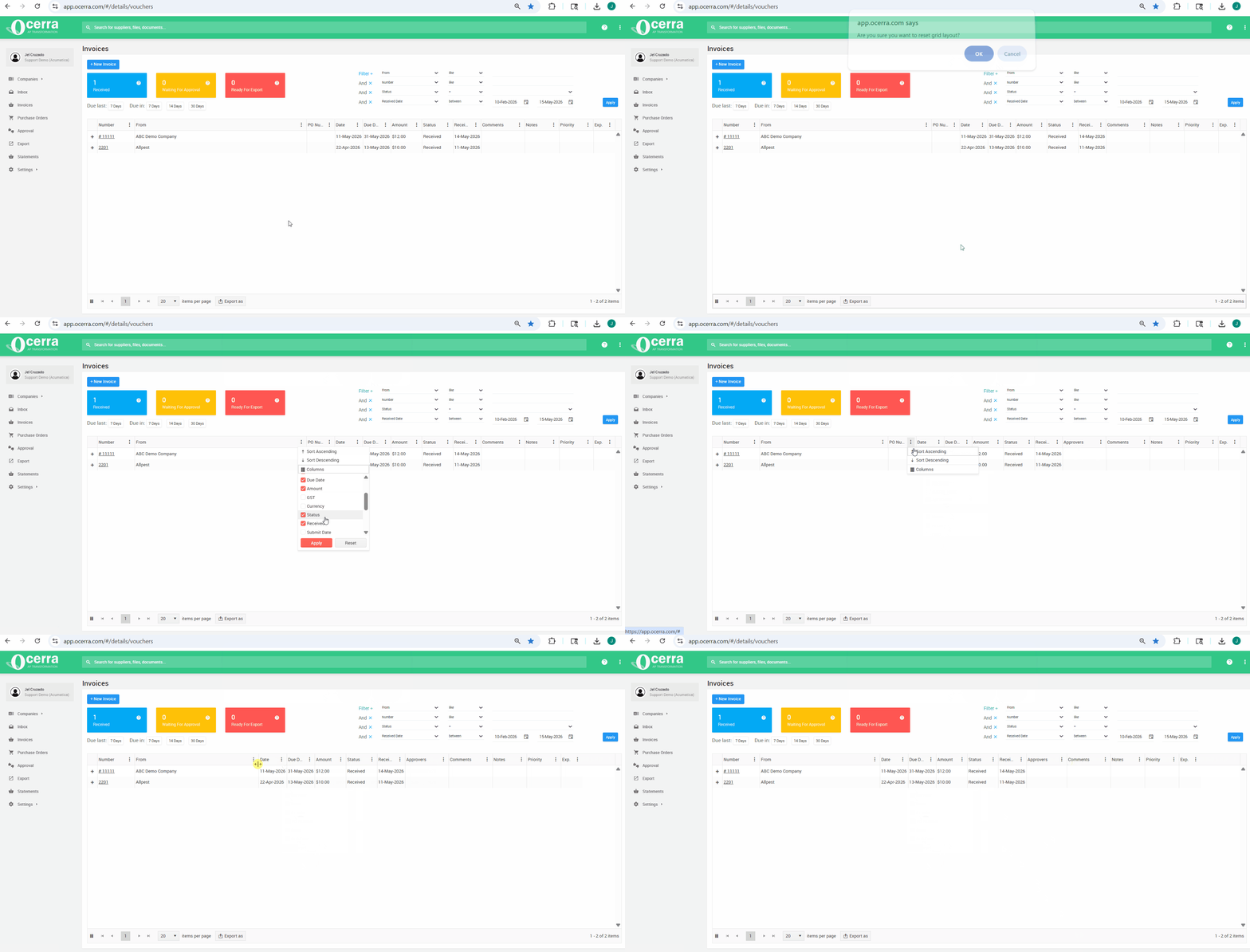
4. Reset invoice list:
- Please click on the icon at the left bottom corner: reset list view
- To add or remove columns, click on any of the three dots (see above) and use a check box to apply.
You can also adjust the column width by dragging the column boarders:
5. Items per Page & Navigation
Choose how many invoices are displayed on a single page and navigate between pages using the controls at the bottom of the list. This lets you customise your view and manage invoices more easily.
To adjust the number of items displayed per page:
- Go to the Invoices and Approval folder.
- At the lower bottom part of the page, there is a drop-down to choose from 20, 40, 60, to 100 items per page.
- The page will automatically refresh to display the selected number of items
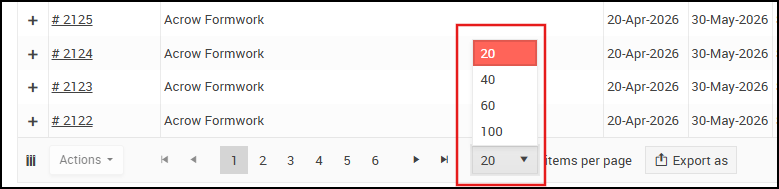
(!) Please note that this option is only available in Invoices, Approval and Purchse Order folders.
6. Export to Smart Excel and PDF
Export invoice data into Excel and PDF, tailored to your filter preferences, simplifying data analysis and reporting.
Export Options: Smart Excel and PDF
7. Bulk Download and Send Reminders
The action button in the invoices list allows you to download invoices either individually or in bulk. You can also send reminders to the approvers to quickly notify users who are currently assigned to approve submitted invoices.
Send Approval Reminders from the Invoices List
Troubleshooting the page view:
To reset application settings for this page:
1) Press F12 on keyboard - > you'll see the Web Browser Dev Tools window
2) Navigate to Application tab on the top menu
3) Click right button on Local Storage -> app.ocerra.com
4) Click clear and refresh the web browser
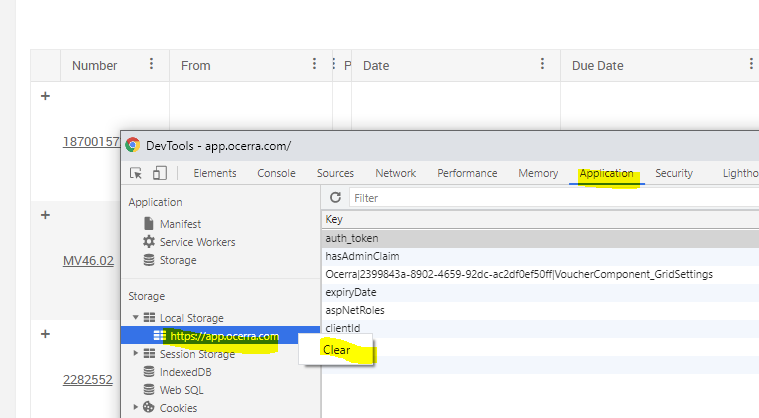
The system will ask you to login again and restore the grid settings to normal. You can close this DevTools window after that.