Automating Accounts using default supplier settings
In Ocerra, there is an option to enter GL Codes on the line-level before exporting to your system. You can manually enter it in Ocerra or automate this proses to save time and eliminate manual entry errors.
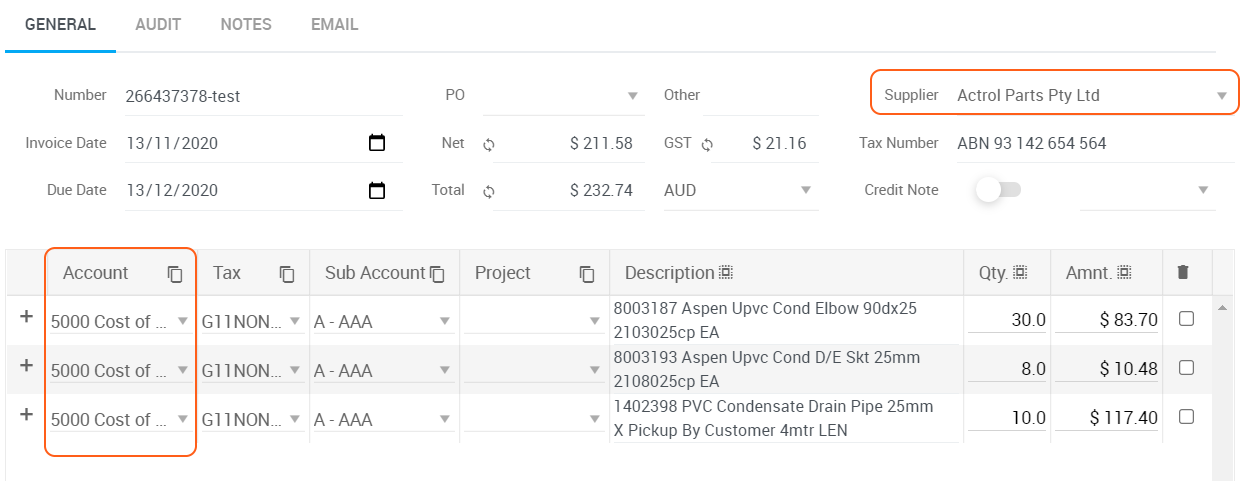
In the example below, Ocerra auto-fills Accounts on the line-level using default supplier settings:
What to do if a supplier has multiple GL codes?
We still recommend adding a default GL code per supplier in your system, this will enhance automation process. A supplier might have different GL codes per invoice, however, it is much easier to update GL codes when required rather than entering it from scratch each time.
Setting up a default Account for your supplier
We recommend setting it up in your accounting or ERP system. E.g.:
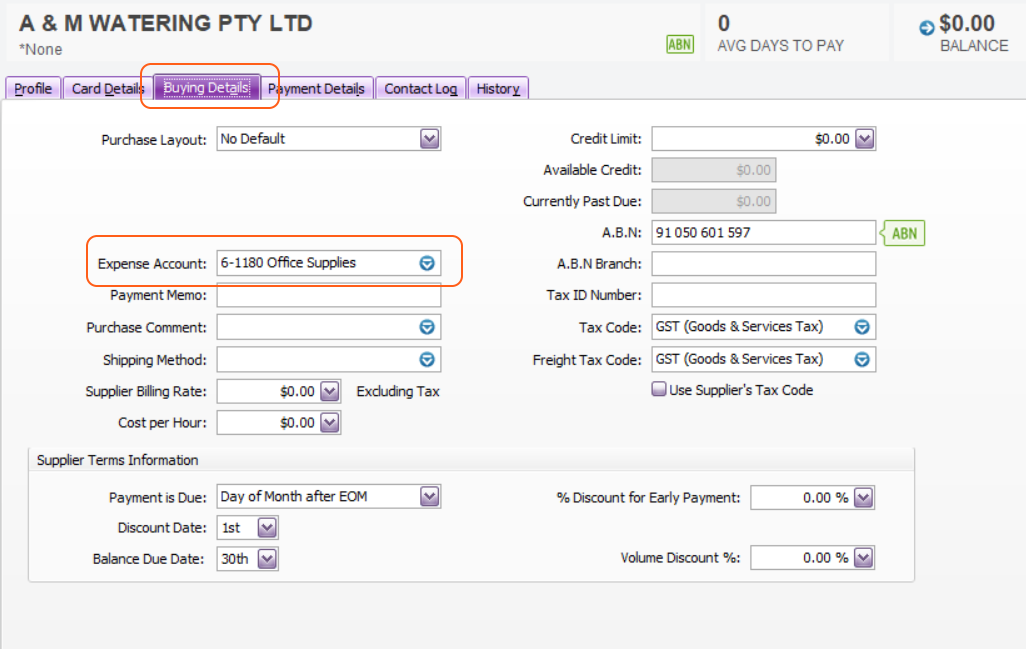
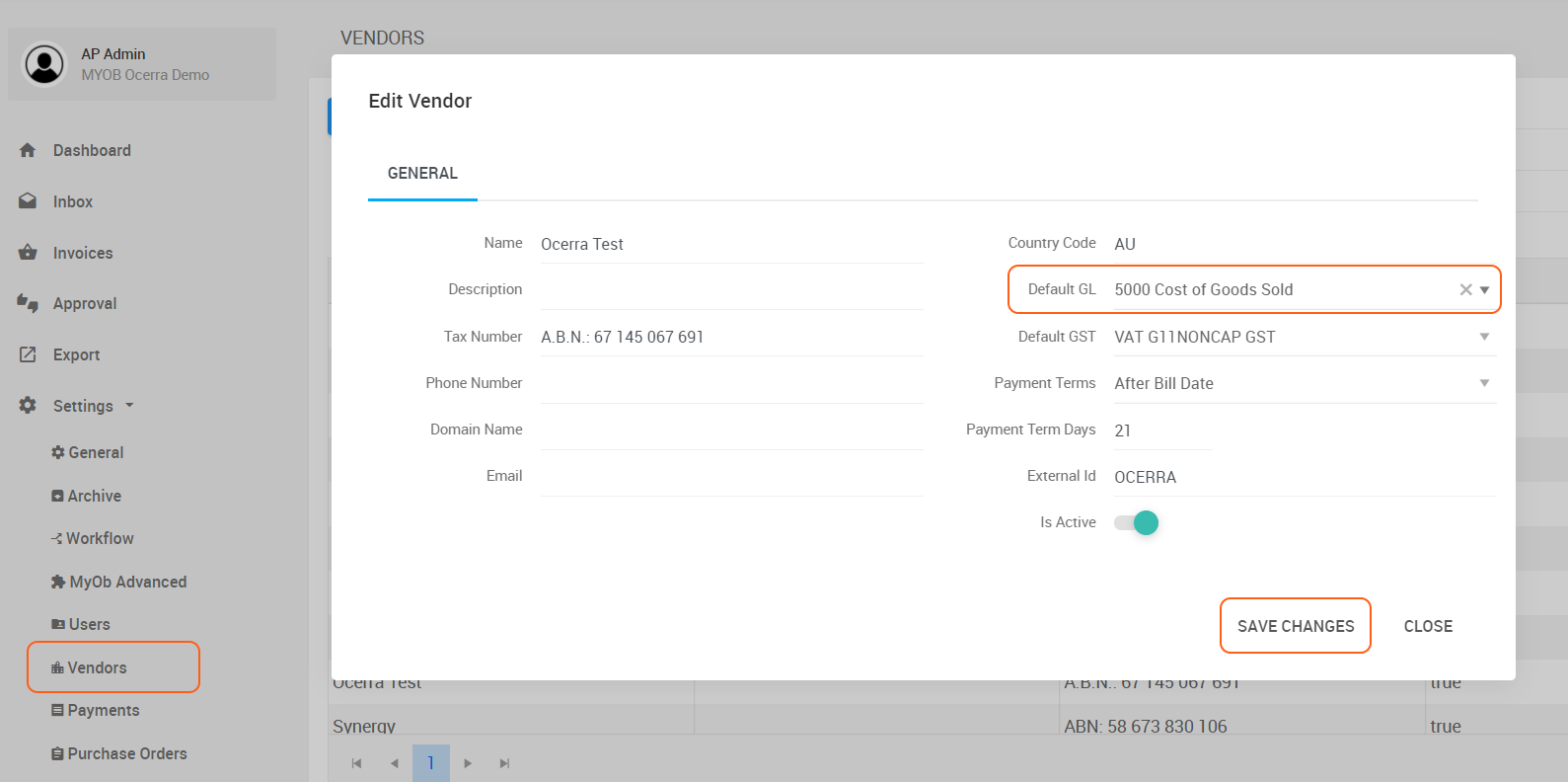
However, you can also set up a default Account (GL) per supplier in Ocerra too.
Go to Vendors - search Vendor - select a default GL code - click Save:
Adding & Updating GL codes manually on the invoice
- Click on the Account field and start typing the account name or code
- Select the one that applies
- Ocerra will remember the last one selected on the invoice when you click the drop-down menu for your convenience
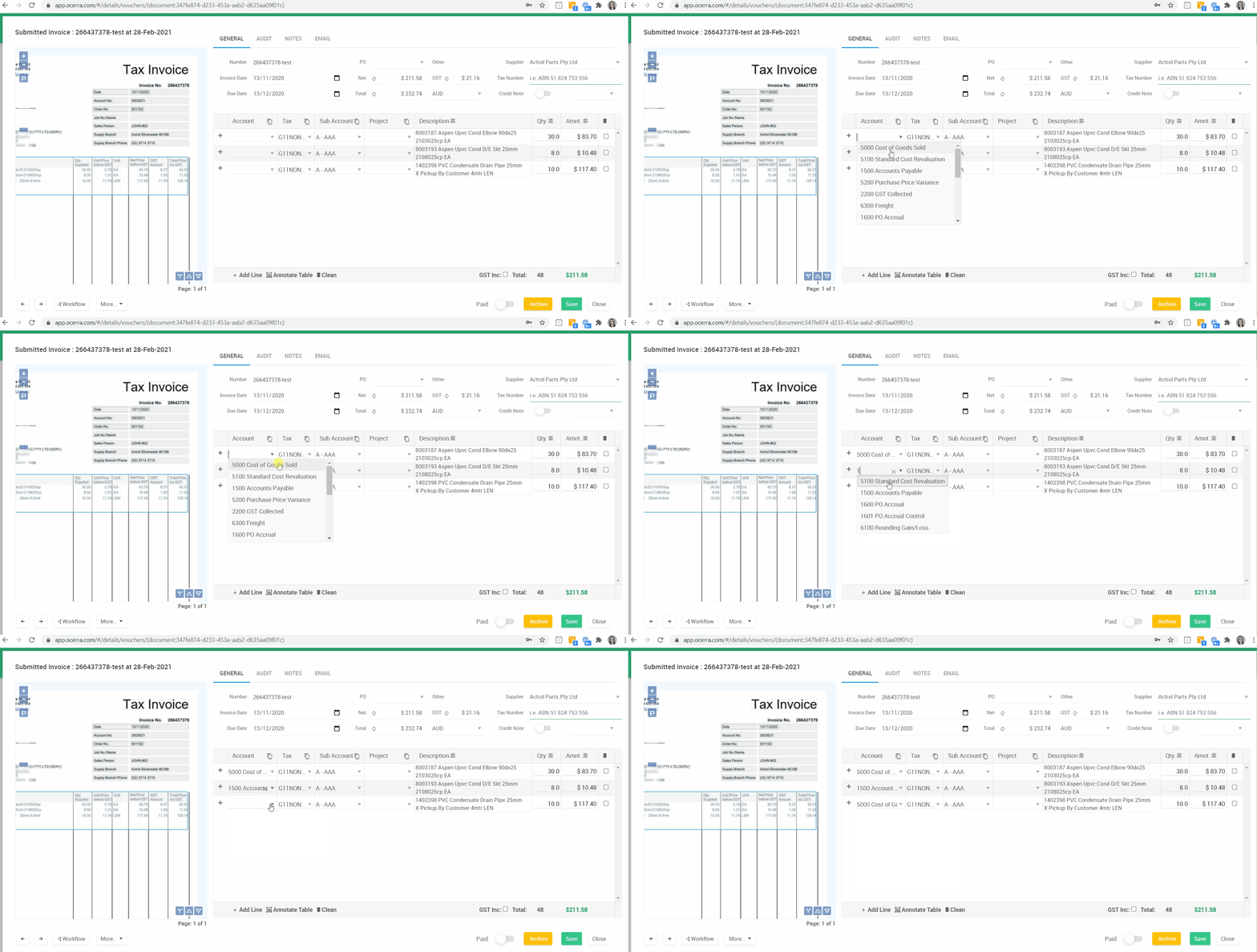
Copy Account codes on multiple lines
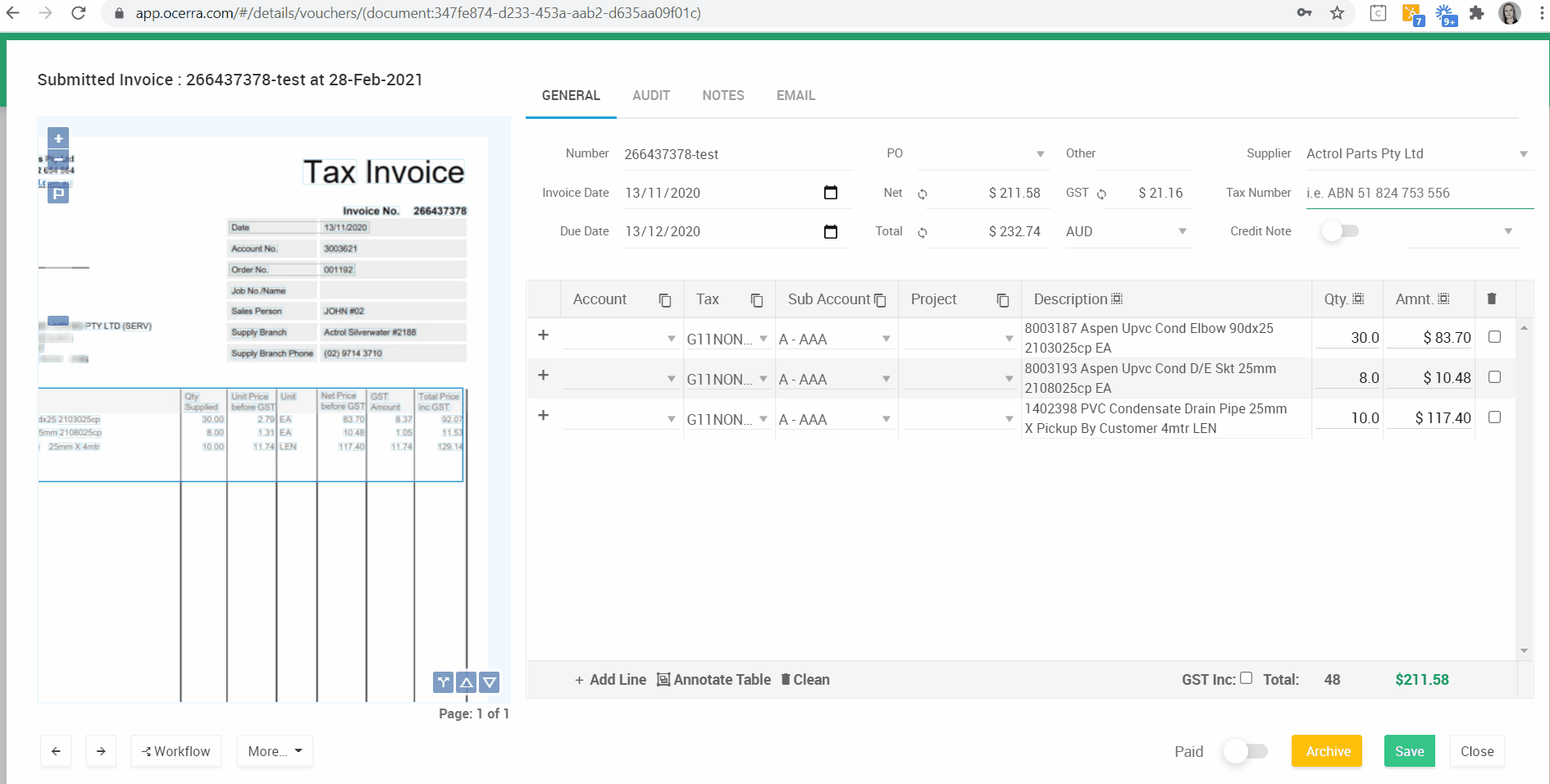
GL codes and Purchase Orders
If you are using Purchase Orders, Ocerra will update/auto-fill GL codes using Purchase Order information.
GL codes and Item Codes
If you are using Item Codes, Ocerra can update/auto-fill GL codes using Item Codes information.
To clear/change GL codes:
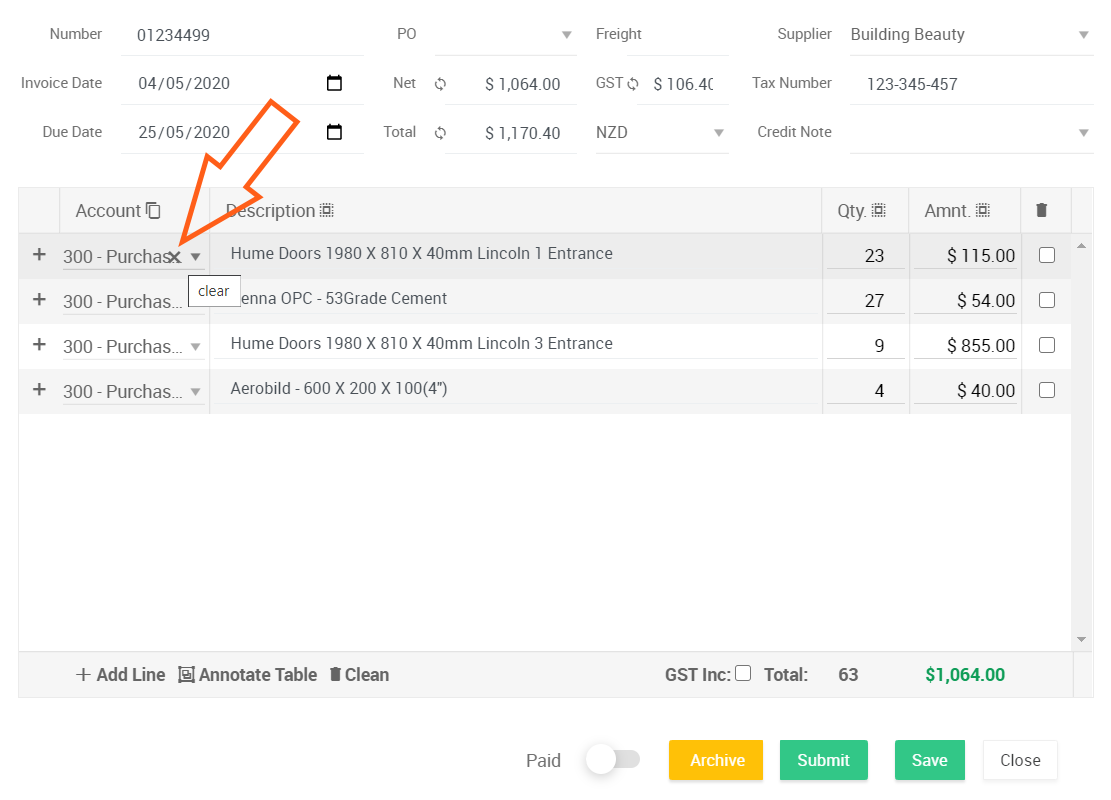
Navigate your mouse cursor on the GL code and click X to clear it, as shown below: