
This article explains how to enable Cost Centres in Ocerra for MYOB AccountRight and how to allocate them to invoices.
Enable and Sync Cost Centres
- Go to Settings → MYOB AccountRight → Settings
- Enable the Sync Cost Centres option
- Click Sync
- Wait for the sync confirmation message to appear in the top-right corner
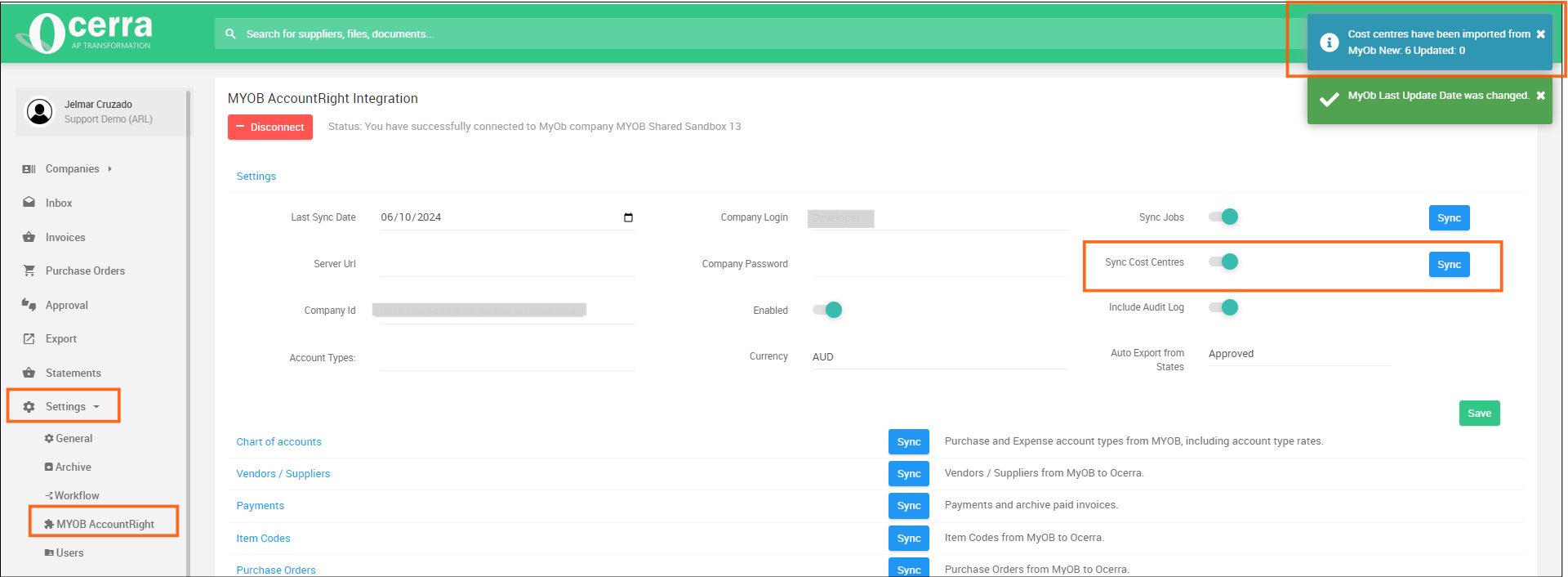
Once synced, your MYOB Cost Centres will become available for selection in Ocerra.
Selecting Cost Centres on Invoices
Cost Centres can be selected on the Invoice page.
Depending on your setup, they may appear:
- at the header level
- at the footer level

Cost Centres Not Appearing
If Cost Centres are not appearing after syncing:
- Go to Settings → General → Custom Fields
- Manually add the Cost Centres exactly as they appear in MYOB
- Click Save
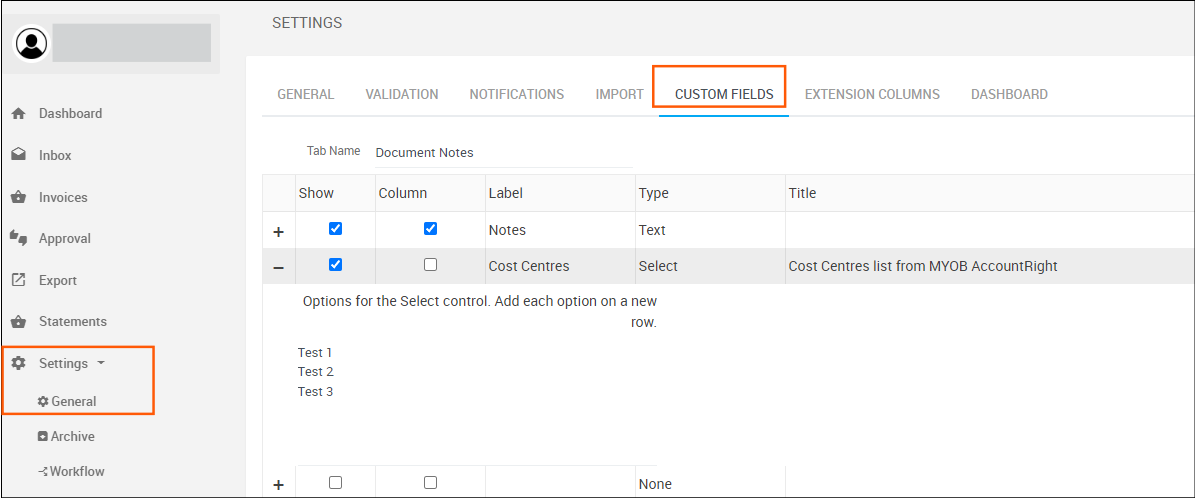
Once saved, the Cost Centres should become available for selection on invoices.
For more information, check this article: How to use Custom Fields.
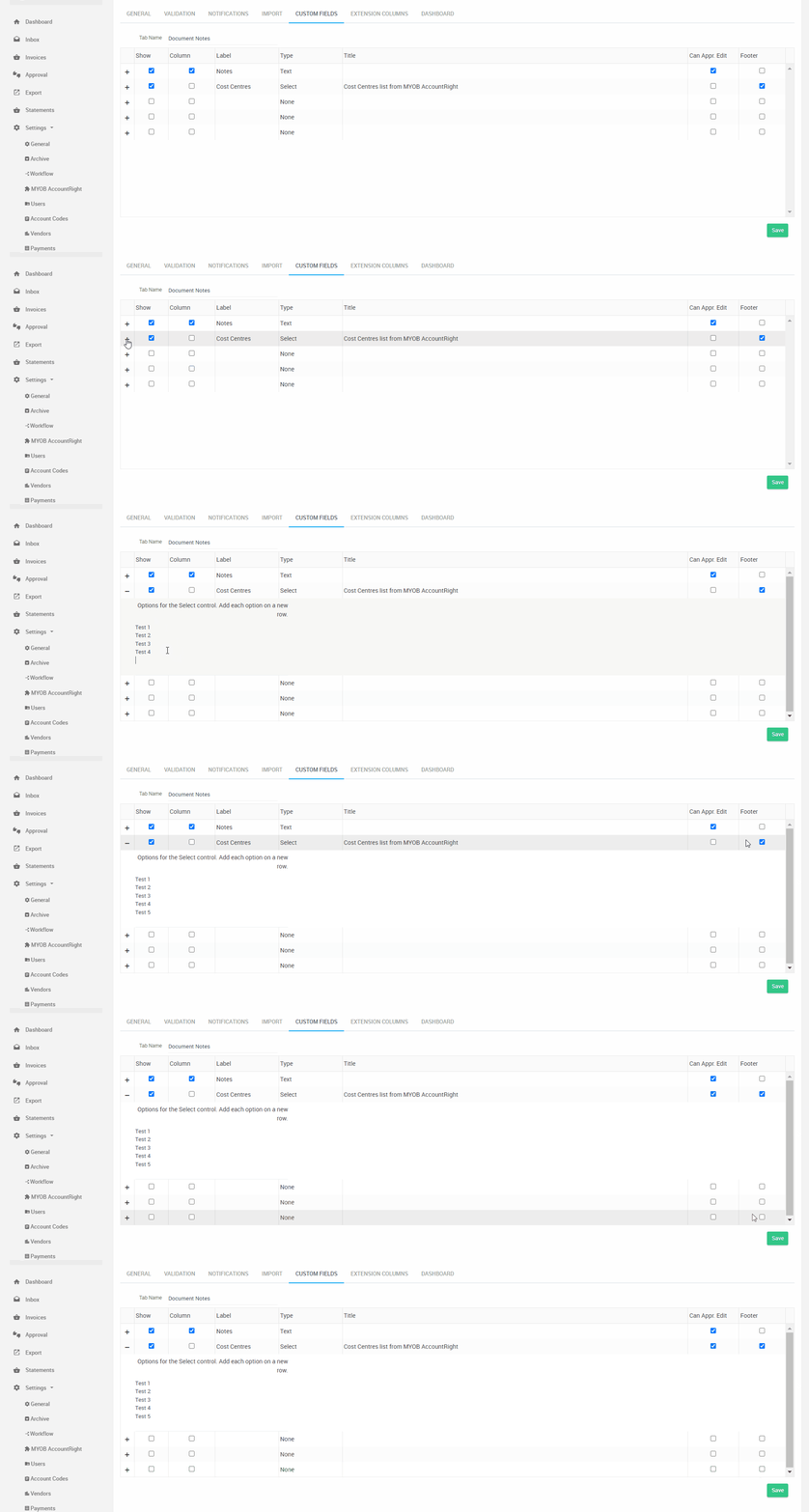
Note
Currentlhy, Cost Centres are not synced automatically from MYOB AccountRight like Suppliers, Jobs or Chart of Accounts. If you create a new Cost Centre in MYOB, you will need to manually sync it from the integration page.