
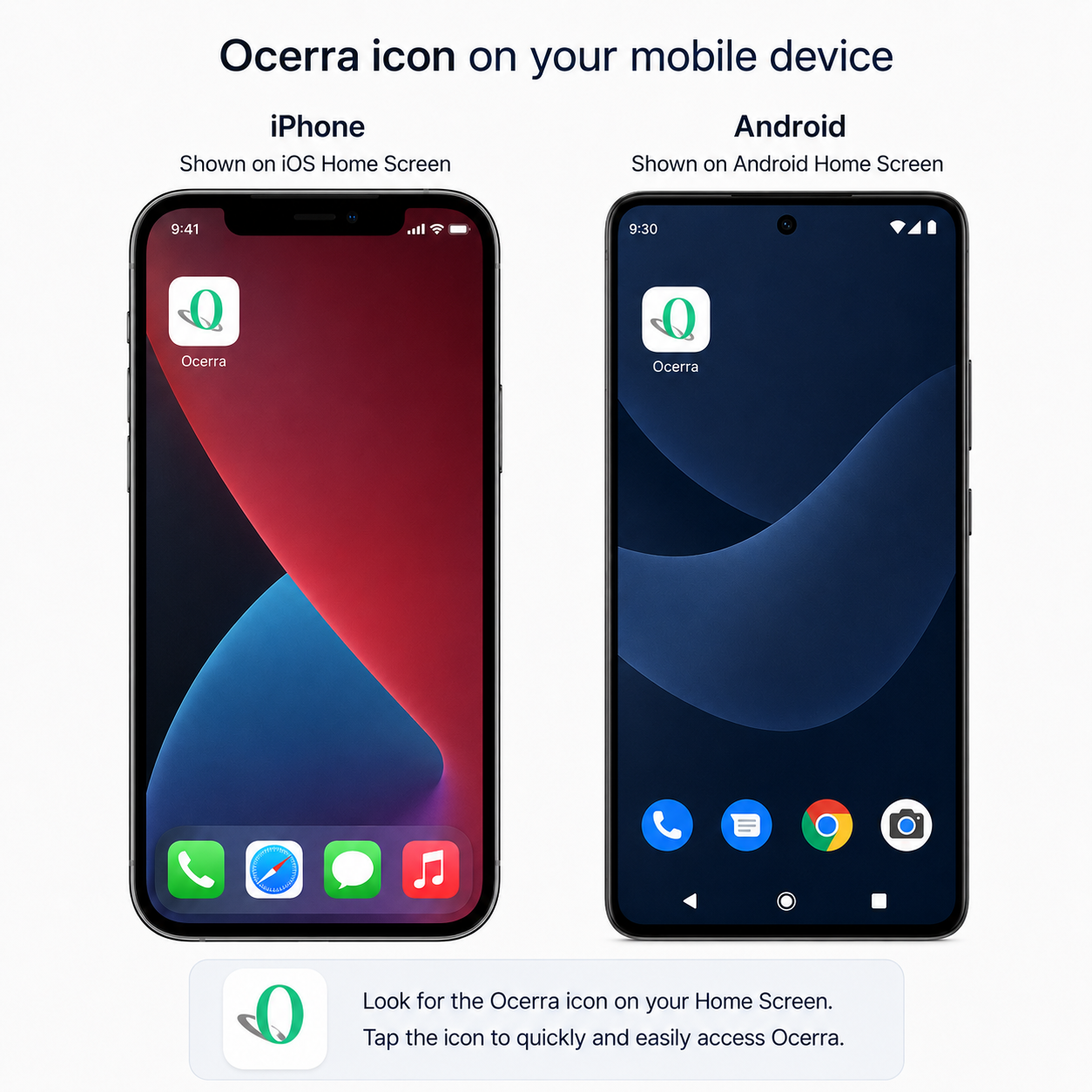
Ocerra is mobile-friendly and can be added to your phone’s Home Screen for quick access, similar to an app.
This is particularly useful for users who submit expenses or approve invoices from their
mobile device.
Before you start
For the best mobile experience, your Ocerra administrator should enable Read-Only mode for users who:
• submit expenses
• approve expenses or invoices
The Read-Only interface is designed to be simpler and works better on smaller mobile
screens.
Add Ocerra to an iPhone or iPad Home Screen
1. Open Safari on your iPhone or iPad.
2. Go to your Ocerra login page and sign in.
3. Tap the Share button.
4. Scroll down and select Add to Home Screen.
5. Change the name to Ocerra if required.
6. Tap Add.
The Ocerra icon will now appear on your Home Screen. Tap it whenever you need to access
Ocerra.
Add Ocerra to an Android Home Screen
1. Open Google Chrome on your Android device.
2. Go to your Ocerra login page and sign in.
3. Tap the three-dot menu in Chrome.
4. Select Add to Home screen. Depending on your device, this may also appear as Install app or Install.
5. Name the shortcut Ocerra if required.
6. Tap Add or Install.
The Ocerra icon will now appear on your Home Screen for quick access.