
Before your users can start submitting Expense Claims, you need to configure how expenses will be coded when exported to your accounting system.
Unlike supplier invoices, Expense Claims do not allow users to select GL Accounts directly. Instead, Ocerra uses Expense Categories, making expense entry much simpler for end users while ensuring finance retains full control over the accounting.
Why Expense Categories?
Most employees submitting expenses don't know which GL Account or tax code should be used.
Instead of asking users to choose from accounting fields such as:
- GL Account
- Tax Rate
they simply select an Expense Category, such as:
- Travel
- Meals
- Parking
- Mileage
The finance team defines the accounting mapping once during setup, and Ocerra automatically applies the correct coding.
For example:
Option 1 – Use Default Tax Account
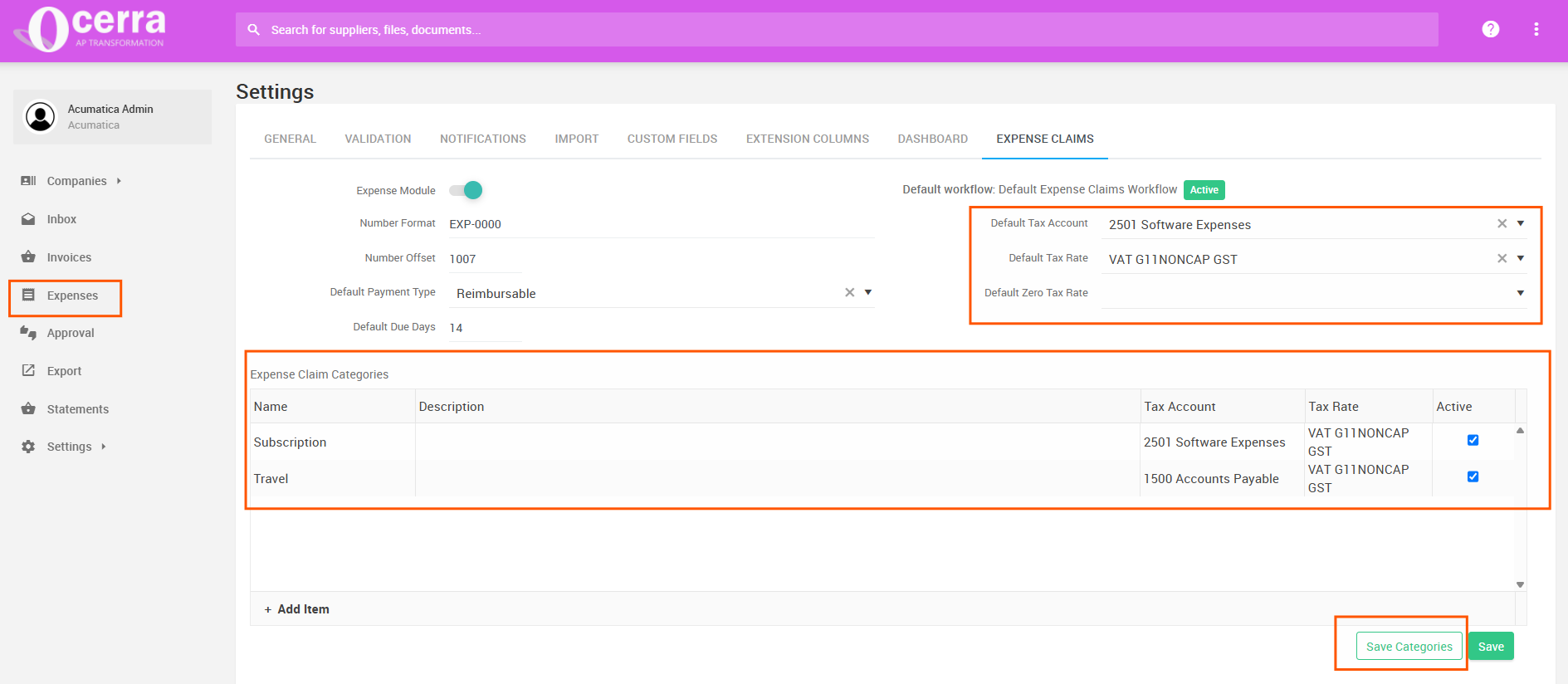
If all expenses should be posted to the same GL Account and Tax Rate, you can configure default values.
Go to:
Settings → Expense Claims
Configure:
- Default Tax Account
- Default Tax Rate
- Default Zero Tax Rate (optional)
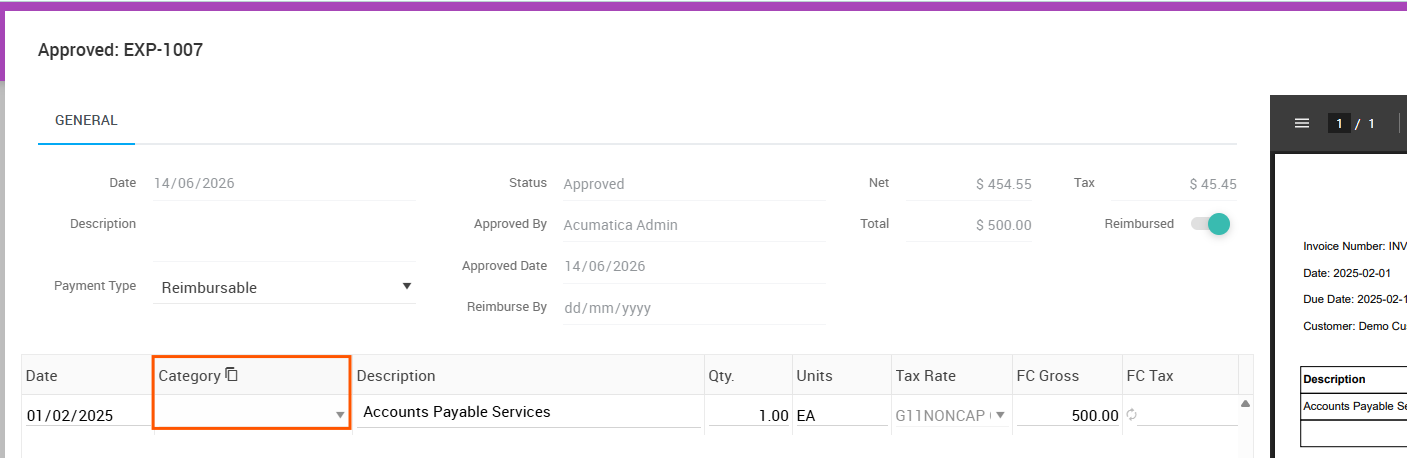
With this setup, users do not need to select an Expense Category. Every expense will automatically use these default values. E.g. this field remains empty on submission:
This option is suitable if all employee expenses are posted to a single expense account.
Option 2 – Configure Expense Categories (Recommended)
If different types of expenses should be posted to different GL Accounts, create Expense Categories.
Go to:
Settings → Expense Claims
- Under Expense Claim Categories, click Add Item.
- Enter the category name.
- Select the appropriate:
- Tax Account (GL Account)
- Tax Rate
- Tick Active.
- Repeat for each category.
- Click Save Categories.
For example:
| Expense Category | Tax Account | Tax Rate |
|---|---|---|
| Travel | Travel Expense | GST |
| Meals | Meals & Entertainment | GST |
| Parking | Parking Expense | GST |
| Mileage | Motor Vehicle Expense | Zero Rated |
Once configured, users simply select the appropriate category when entering an expense, and Ocerra automatically applies the correct accounting codes during export.

- GST Tax Rate
The employee doesn't need to understand accounting codes, while the finance team maintains complete control over how expenses are coded.
Note: Expense Categories should be configured before employees begin submitting Expense Claims. This ensures expenses are exported with the correct GL Accounts and Tax Rates automatically.