
The Expense Claims page displays all submitted, draft, and approved expenses in a table format. Each column represents a specific detail about an expense claim, helping you quickly review, filter, and manage your records.
You can also customise which columns appear—perfect for tailoring the view to your workflow.
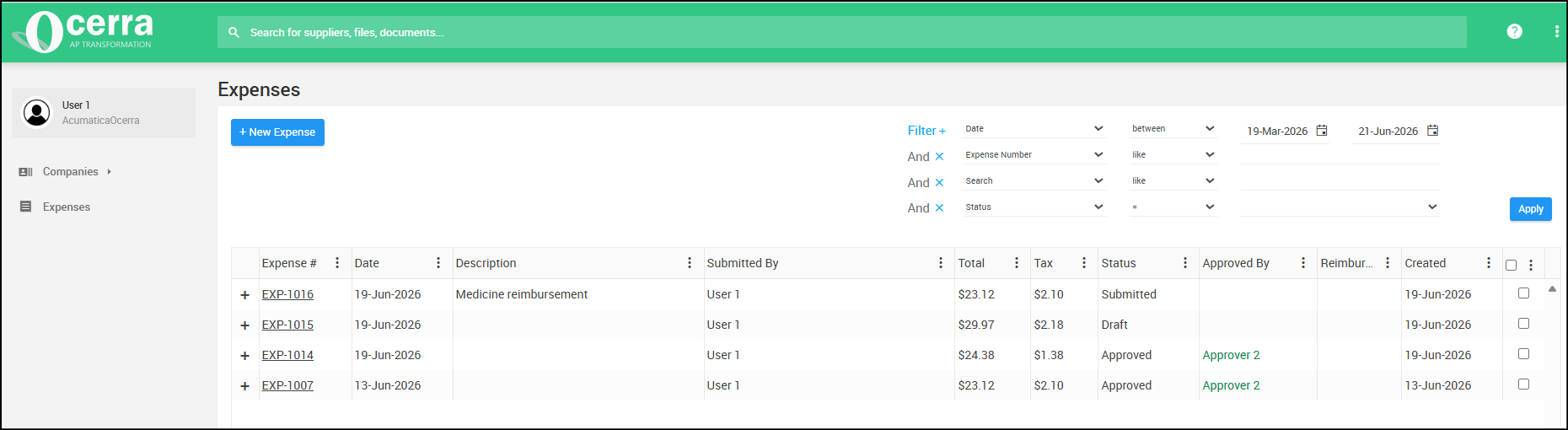
Available Columns Explained
Below is an overview of the columns used in the Expense Claims table:
Expense # — The unique identifier automatically assigned to each expense claim.
Date — The date the expense was incurred.
Description — A short summary of what the expense was for.
Submitted By — The user who created or submitted the expense claim.
Total — The total amount of the expense, including tax.
Tax — The tax amount applied to the expense.
Status — Indicates whether the claim is Draft, Submitted, Approved, or Reimbursed.
Approved By — The approver who authorised the claim (if applicable).
Reimbursed — Shows whether the claim has been reimbursed.
Created — The date the expense claim was created in the system.
Customising Your Columns
You can enable or disable columns depending on what information you want to see.
How to Show or Hide Columns
Click the three‑dots menu (⋮) on any column header.
A list of available columns will appear.
Tick a column to enable it.
Untick a column to hide it from your view.
This allows you to personalise the Expense Claims table so it displays only the details that matter to you.