
Follow the steps below to connect your MYOB AccountRight company file to Ocerra.
Step 1 – Confirm your MYOB company file user
Ocerra connects to MYOB using a company file user, not your MYOB account login.
To view existing users in MYOB, go to:
MYOB → Setup → User Access
The value shown in the User ID column is the username that must be entered in Ocerra under Company Login.
Examples of valid usernames:
Administrator
OcerraAPI*
another user listed under User Access
*We recommend creating a dedicated integration user such as OcerraAPI. See below.
Step 2 – Confirm the login works in MYOB
Before entering the credentials in Ocerra, confirm that the username and password can successfully log into the MYOB company file.
Ocerra uses the same credentials MYOB requires to access the company file.
If the login cannot access the file in MYOB, the connection will fail.
Step 3 – Enter MYOB credentials in Ocerra
Navigate to:
Settings → MYOB AccountRight Integration
Enter the following details.
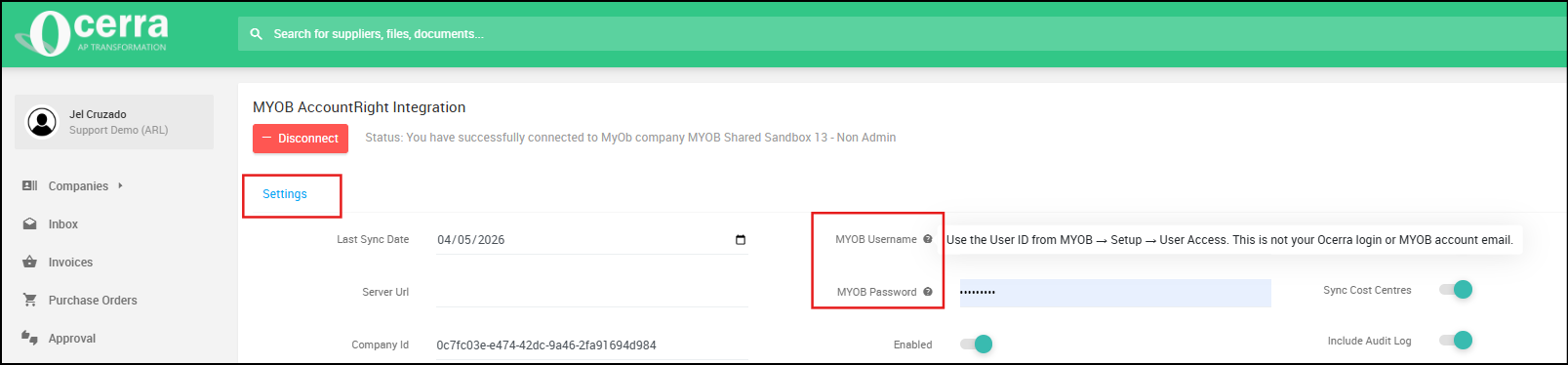
MYOB Username
Enter the MYOB company file username.
Examples:
AdministratorOcerraAPI
Do not enter:
your Ocerra login
your personal name
your MYOB account email
You can find this username in MYOB → Setup → User Access.
*Use the User ID from MYOB → Setup → User Access. This is not your Ocerra login or MYOB account email.
MYOB Password
Enter the password for the MYOB User ID used for MYOB Username.
Note:
The Administrator user sometimes has no password configured, in which case this field can be left blank.
However, new users created in MYOB must have a password set.
Step 4 – Connect and select the MYOB company file
After entering the credentials:
Click Connect button
Ocerra will retrieve a list of available MYOB company files
Select the company file you want to connect
Click Save
If the connection is successful, the MYOB company file will now be linked to Ocerra.
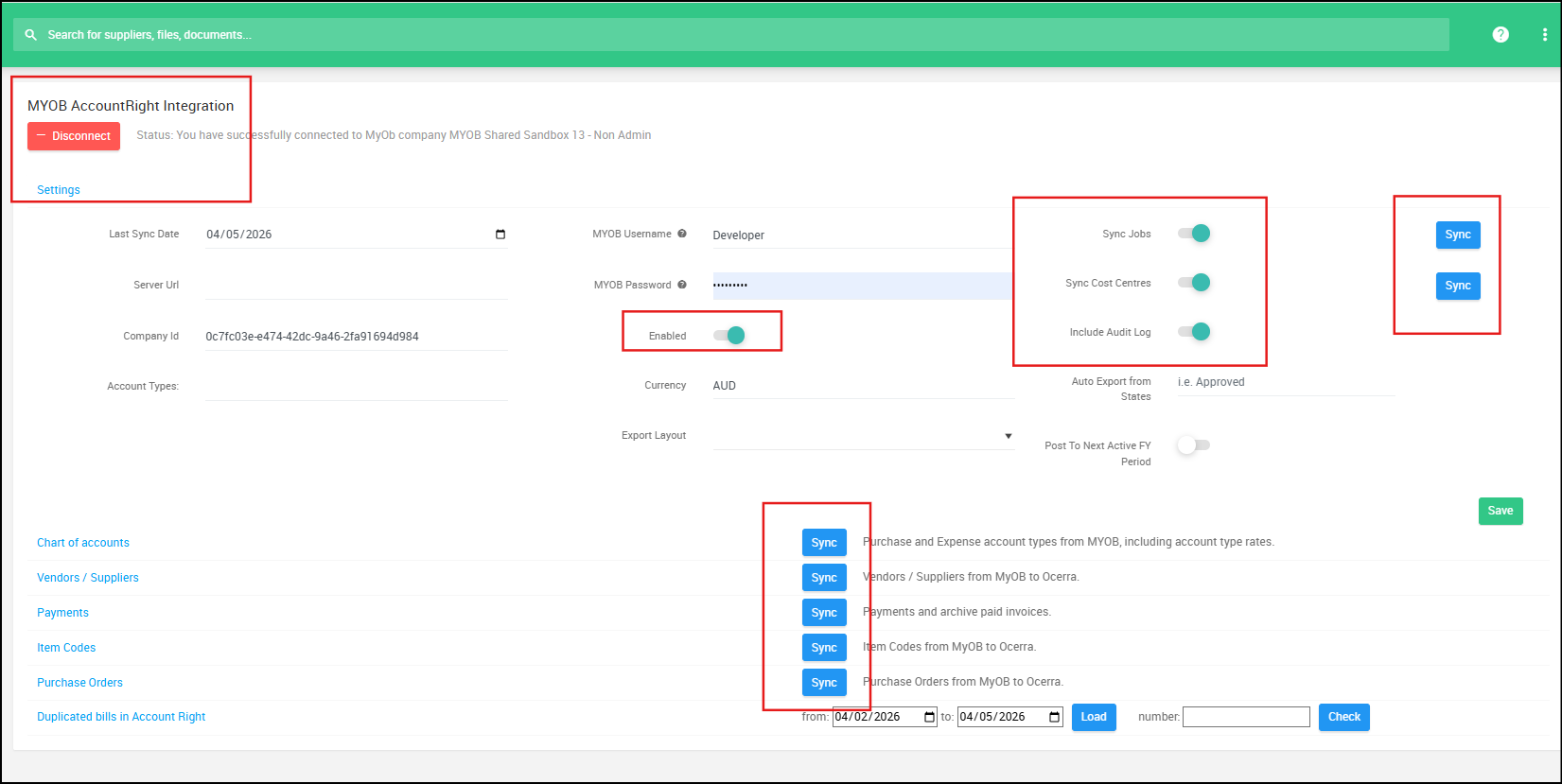
Step 5 – Click sync to import your data (you only do it once)
To import data from MYOB, click Sync on the required components in Ocerra the first time.
After the initial sync, Ocerra automatically imports new or updated information every 20 minutes. For example, if you create a new supplier in MYOB, it will be imported automatically.
Creating a MYOB user for Ocerra (optional)
If you prefer not to use the Administrator user, you can create a dedicated integration user.
Open MYOB
Go to Setup → User Access
Click New User
Enter a username such as OcerraAPI
Uncheck “This user will sign on with a my.MYOB account (Recommended)
Set a password
Under Company file roles, ensure Administrator is selected so the user has full access.
Save the user
The User name and password created here must be entered in Ocerra under Company Login and Company Password.
Common connection issues
If the connection fails, please check the following.
1. Using the wrong login
MYOB uses two different logins:
| Login type | Used for |
|---|---|
| MYOB account login | Signing into MYOB |
| Company file username | Accessing the company file |
Ocerra requires the company file username, not the MYOB account login.
2. Creating a new user without setting a password
When creating a new MYOB user, the option “This user will sign on with a my.MYOB account” is enabled by default.
If this remains enabled, the user may not have a company file password set.
For Ocerra connections:
Uncheck this option
Set a password for the user
Then use that username and password in Ocerra.
3. Selecting a different MYOB company file
If you create a new MYOB user, make sure it exists in the same company file you select in Ocerra after clicking Connect.
Users created in a different MYOB company file will not work.
4. Creating the user in MYOB online instead of inside the company file
Ocerra connects to the AccountRight company file, not the MYOB online portal.
The user must be created inside the company file under:
MYOB → Setup → User Access