
Applies to: New and existing users of Ocerra
Ocerra is a cloud-based accounts payable automation application, accessible from any modern web browser. This article explains how to sign in, recover access if needed, and links to related help articles you may need.
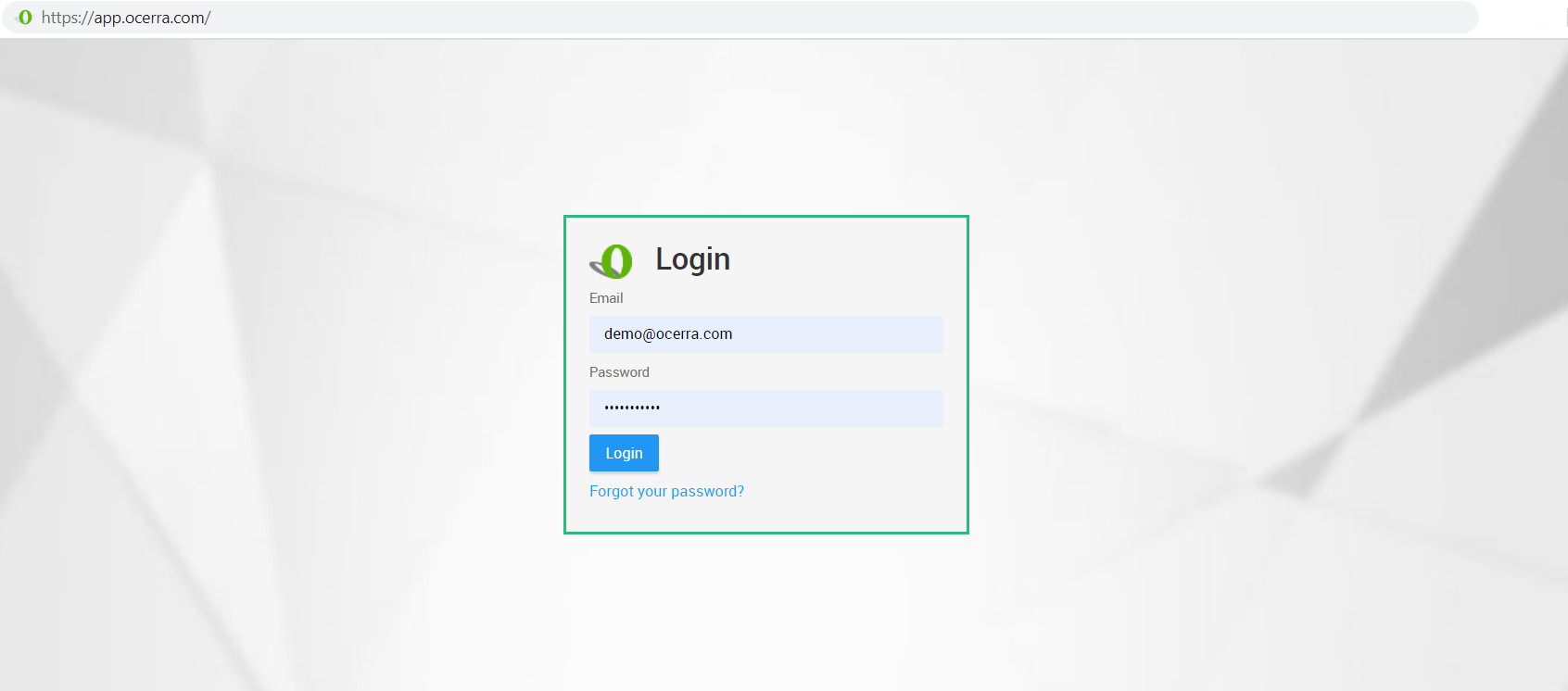
Access Ocerra via Web Browser
Open your preferred web browser (Chrome, Edge, Safari, Firefox).
Go to https://app.ocerra.com/.
On the login page, enter your registered email address and password.
Click Sign In.
For the best experience and full functionality, we recommend logging in using a desktop or laptop computer rather than a mobile device.
First-Time Users / New Accounts
When you are added to Ocerra by your supervisor, accountant, or system administrator:
- You will receive an invitation email from Ocerra containing a temporary password or account confirmation link.
- Click the link in that email to set up your permanent password.
- Once you’ve set your password, return to https://app.ocerra.com/ and log in as normal.
Access Using Single Sign-On (SSO)
Ocerra supports Single Sign-On (SSO) with Microsoft 365 (where enabled), so you can log in using your Microsoft credentials without typing a separate password. This makes logging in simpler and more secure.
Single Sign-On (SSO) with Microsoft 365
If your organisation is set up with SSO and you do not see the Microsoft login option, please speak with your IT admin.
Forgot Your Password?
If you can’t remember your login password, please refer to this support article for step-by-step instructions on how to restore your password.
Troubleshooting Login Issues
If you are unable to access Ocerra:
✔ Make sure you’re using the correct email address assigned to your Ocerra account.
✔ Confirm there are no typos in your password.
✔ Try clearing your browser cache and cookies, then retry logging in.
✔ Disable any VPN or corporate network restrictions that may block external sites.
✔ Ensure you are logging in using a supported browser (Chrome, Firefox, Edge, Safari).
Read Next: Getting Started Guide