Overview
- Workflow comments and confirmation pop up explained
- Set up comments as required for an user to move document from one status to another
Confirmation pop up and workflow comments explained
By default, when moving a purchase order from one status to another, e.g. from Draft to Reviewed/Submitted or Submitted to Approved, Ocerra shows a confirmation pop up. For example:
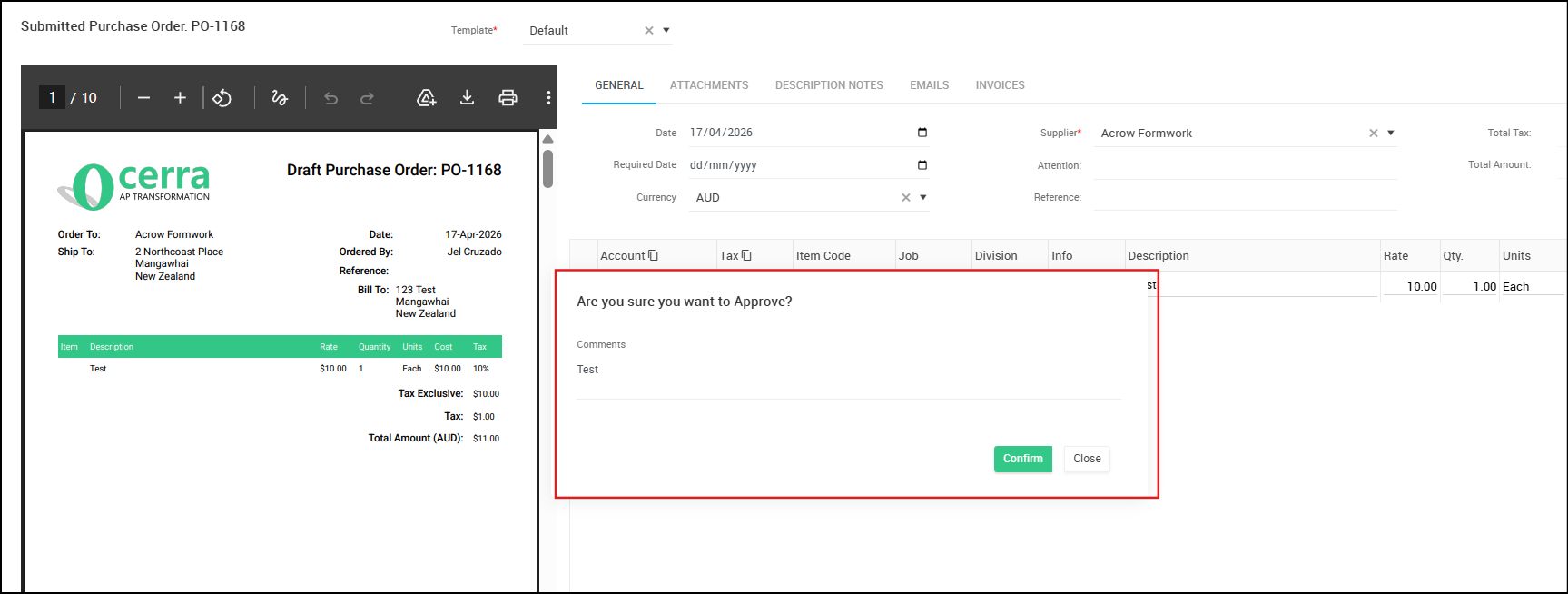
This comment field is optional, and you can skip adding a comment by clicking "Confirm".
If you would like to make this comment required, you have to enable comment check box in the workflow builder.
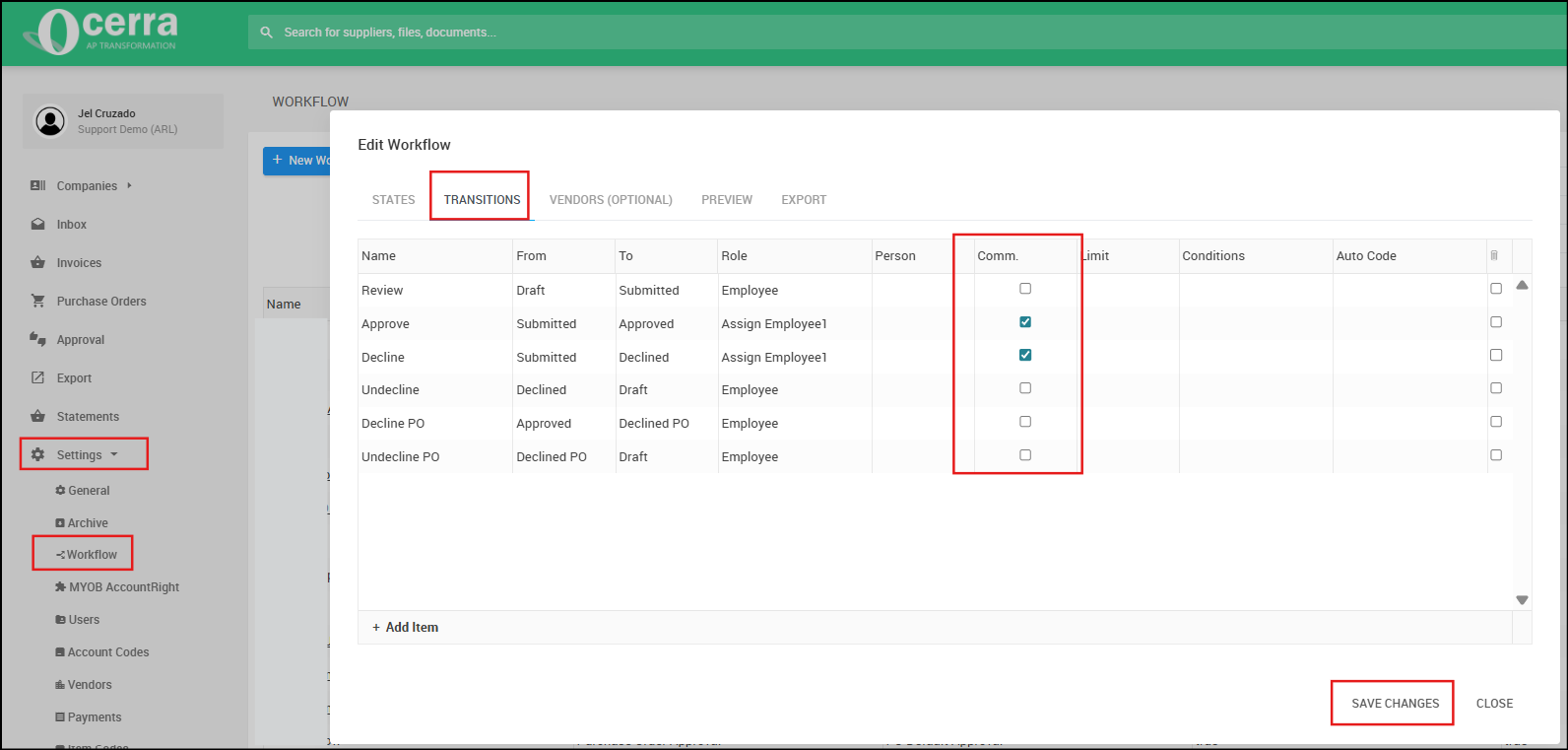
In the example above, a comment will be required when moving the purchase order from the Submitted to Approved and from Submitted to Declined statuses.
You will see an *asterisk next to the comment:
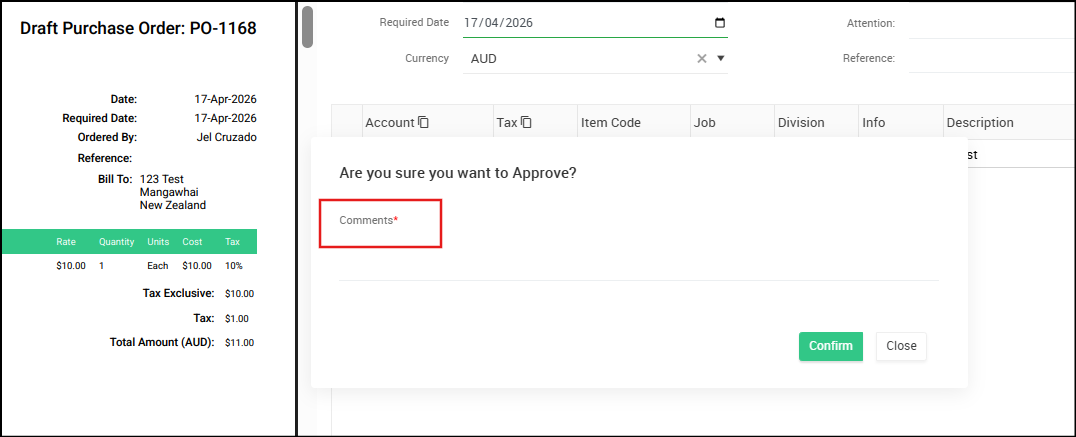
A user must leave comment before moving an invoice to the approved status.
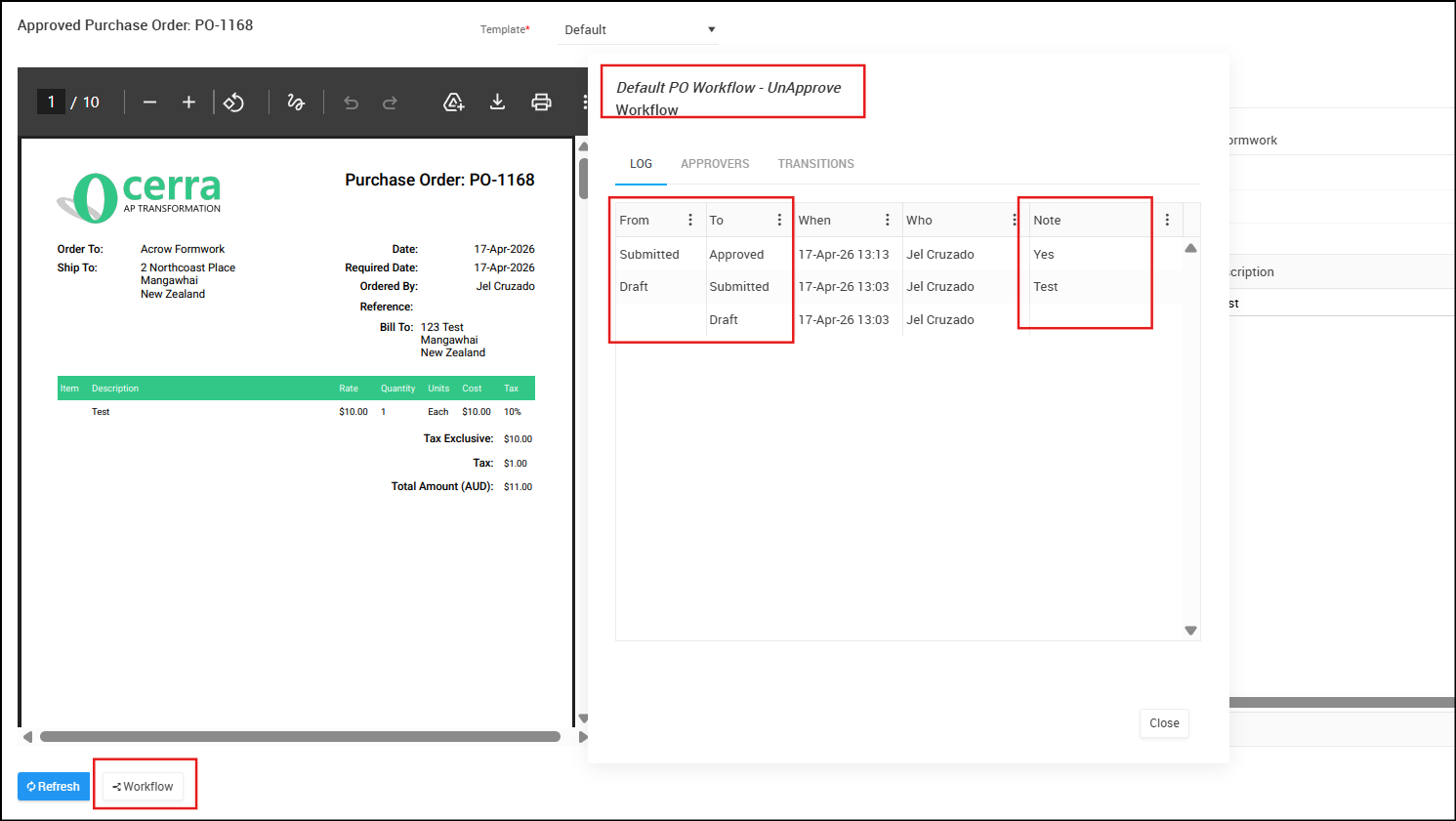
PO workflow comments are visible under the “Workflow” log on the document. If you open it up, you will see a workflow name, and the record of steps, including comments:
Enable workflow comments on the Invoices Page
- Go to Settings - General - Enable Workflow Comments:
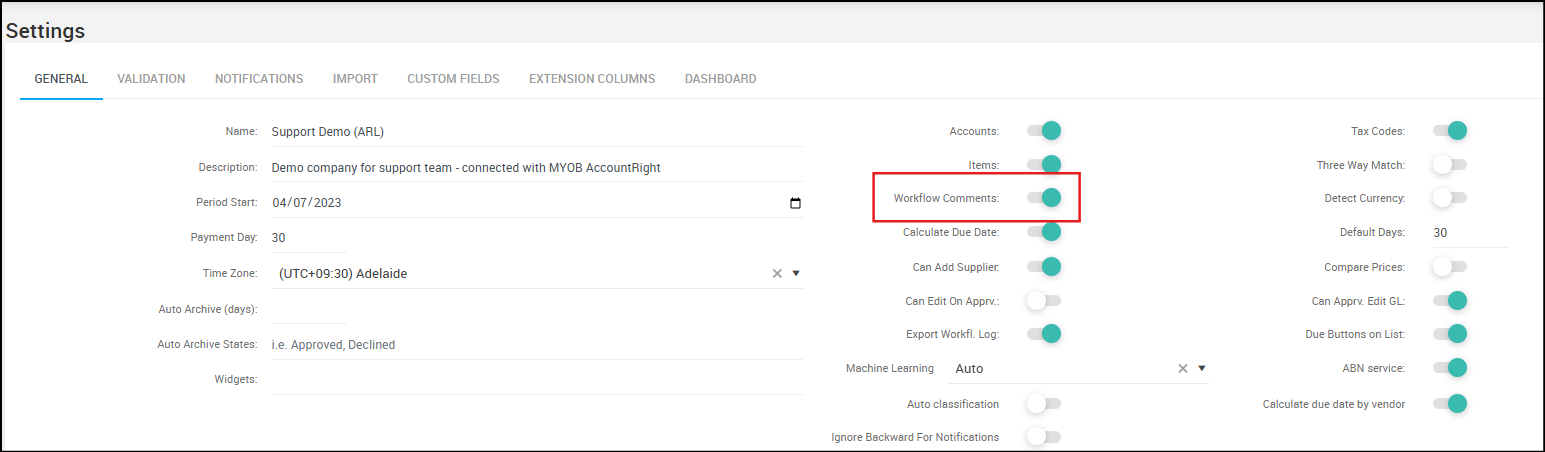
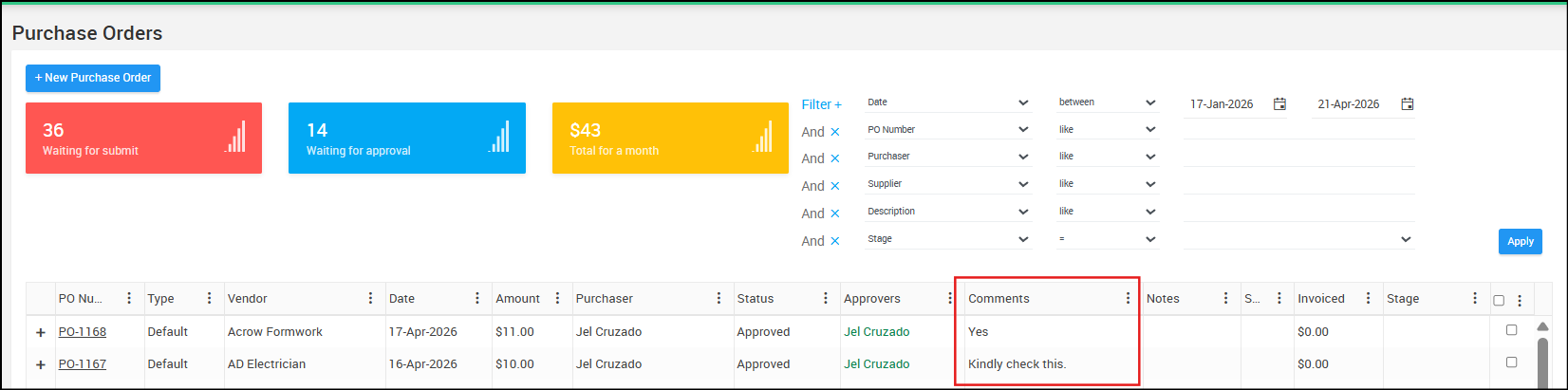
When enabled, the workflow comments columns will be visible on the PO page too: