
Overview:
In Ocerra, users have the ability to manually close one or multiple approved Purchase Orders (POs) with a single action. Closed POs remain visible in the system and can be archived when no longer needed, making it easy to maintain a clean and organized workflow.
Here’s how to manage this feature, step-by-step:
How to Enable the PO Action Column
To start using the manual PO closing and reopening features, follow these simple steps to enable the PO Actions column:
Go to the Purchase Orders folder: Navigate to your Purchase Orders section within Ocerra.
Access the Column Settings: Click the three dots located in the column header of the Purchase Orders list.
Enable the Actions Column: From the dropdown menu, select "Column" and check the box labeled "Actions".
Apply Changes: Once enabled, a new Actions column will appear, giving you the option to perform various actions on your POs.
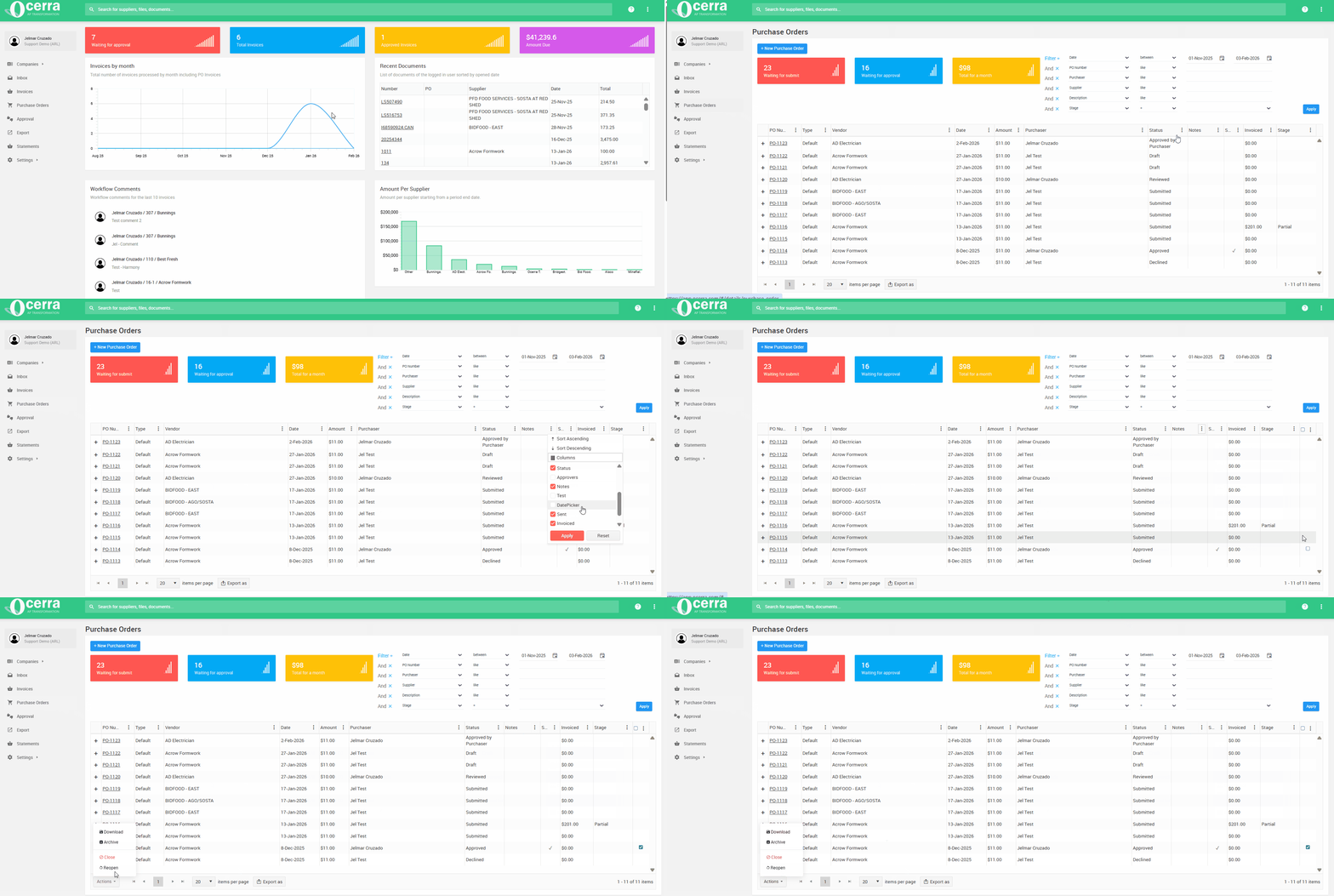
PO Actions Available
Once the Actions column is enabled, you can perform the following actions on individual or multiple Purchase Orders:
Download: Save the PO details as a pdf document.
Archive: Archive the PO if it’s no longer needed but you want to keep it for record-keeping.
Close PO: Mark the PO as closed, indicating that no further updates, additions, or changes can be made to it.
Re-Open: If a PO was closed by mistake, it can be manually reopened at any time.
Note: Once PO Action has been enabled, you can perform bulk actions. Simply tick the boxes, and you’ll be able to apply actions to all selected POs.
How to Close a PO
To close a Purchase Order, follow these steps:
Go to the Purchase Orders list: Ensure you are in the right folder where your POs are stored.
Select the POs to close: Tick the checkbox next to the PO(s) you wish to close.
Close the PO(s): Click on the Actions dropdown in the Actions column and select Close PO. Your selected POs will now be marked as closed.
How to Re-Open a PO
If a PO is closed by mistake or you need to make changes to it, you can easily reopen it:
Go to the Purchase Orders list: Navigate to the folder containing the closed PO(s).
Select the PO to reopen: Tick the checkbox next to the PO you want to reopen.
Reopen the PO: In the Actions column, click the dropdown and select Re-Open. Your PO will be restored to its previous state, allowing further edits and matching with invoices.
Important Notes
PO Visibility: Closed POs will remain visible in your list for easy reference, unless archived.
Invoice Matching: Once a PO is closed, it can no longer be matched with an invoice or have any further additions made to it. Ensure all necessary actions are completed before closing a PO.